

Outlook resolve login problems
Symptoms can be
- Sign-in window keeps popping up.
- A yellow warning triangle with the message "Password required" appears in the Outlook status bar.
- No new emails arrive in the mailbox. The Outlook status bar shows the message "Last update on xx disconnected".
The login problems can have various causes, including an incorrect user name or saved login information.
Check the user name
If a login window appears and the login fails despite entering the correct password, the user name is probably incorrect. In the screenshot of a login window the top line (outlined in green) shows the mailbox that is being accessed. In the line below (outlined in red) is the username that is used for logon.

The user name max mustermann ∂does-not-exist.kit edu is not correct. The correct user name is yab1234@kit.edu.
To change the user name, click on "More choices" and then on "Use differen account".

Delete saved credentials
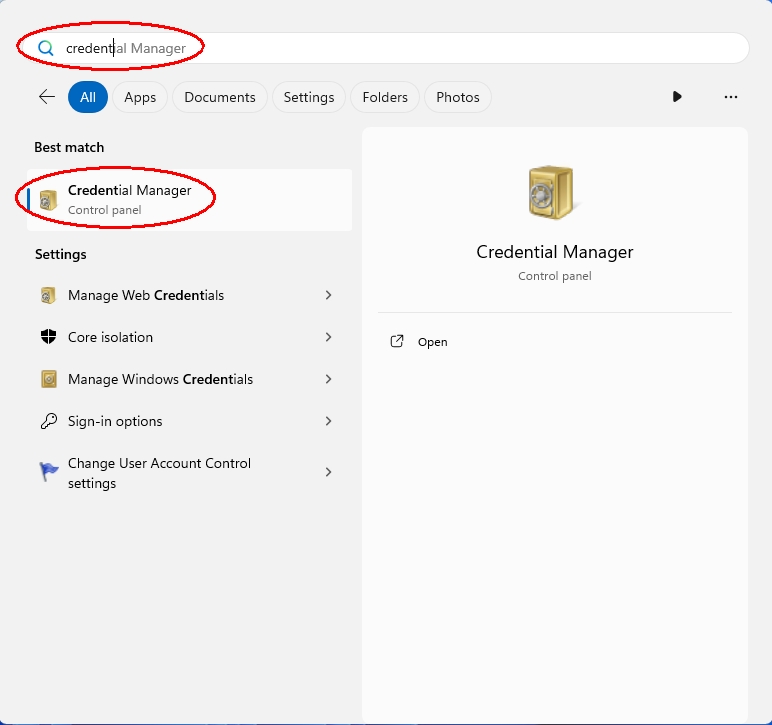
If the mailbox is disconnected or no login window appears, "incorrect" credentials have probably been saved. You must delete the "incorrect" saved credentials. To do this, click on the Windows start button and type in "Credential Manager". Normally the first few letters are sufficient until the appropriate suggestion appears. You can then click on it. Outlook should of course be closed before.
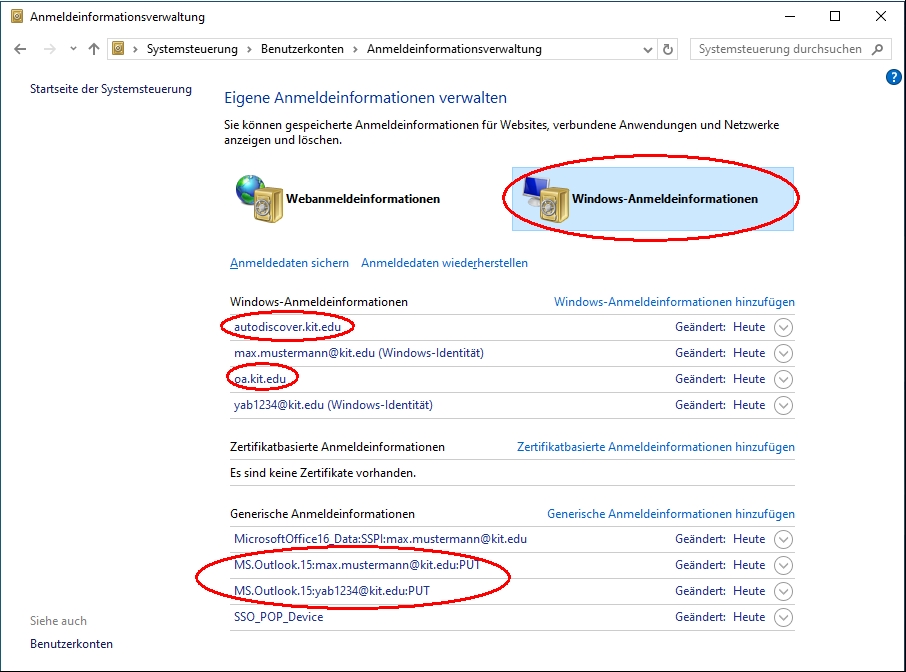
Click on "Windows Credentials". More or less entries with saved logon information appear here. There are entries from Outlook such as autodiscover.kit.edu, oa.kit.edu or MS.Outlook.xxx. Delete these entries.
To do this, click on an entry so that it is expanded. Now you can click on "Remove".
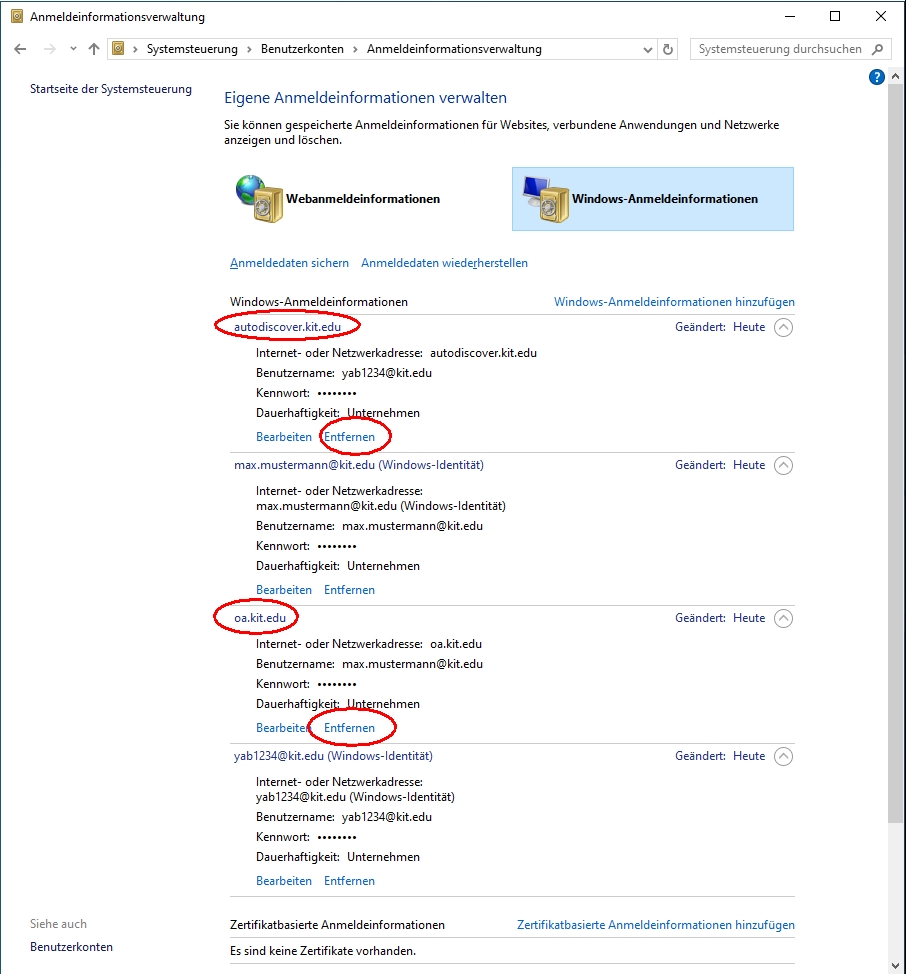
Now restart Outlook and check whether the login to the mailbox is successful. If this does not solve the problem, also delete other entries such as MicrosoftOfficexxx and SSO_POP_Device.