

Call settings in Teams
↵
Microsoft provides details on all the available settings for Teams calling.
The following section explains a few key features of Teams calling.
Use selected features in Teams calling
Set up call forwarding
- Settings → Calls → Call handling and forwarding
- "Forward All Calls" - OFF
- "If you can't answer a call" - you can forward it to another number or contact
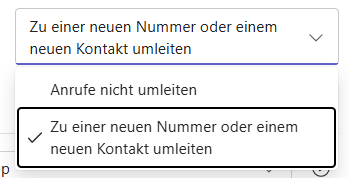
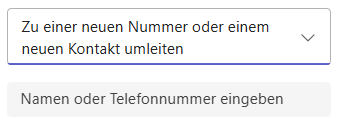
- The "Forward to voicemail" option is currently not available
Note: "Voicemail" means that the recorded message is delivered to your Exchange mailbox as an email.
Setting up a deputy
Deputies can make and receive calls on your behalf. They will be notified if you change your call settings to forward your calls to them.
(This corresponds to the manager–secretary arrangement)
(This corresponds to the manager–secretary arrangement)
Quick guide:
First, appoint your chosen deputy.
Then set the options for
‘When you receive a call’ and
‘When you cannot answer a call’
to your preferred settings.
First, appoint your chosen deputy.
Then set the options for
‘When you receive a call’ and
‘When you cannot answer a call’
to your preferred settings.
Please also read the detailed guide from Microsoft: Share a phone line with a delegate in Microsoft Teams
Define a call group
Call group members can receive calls on your behalf.
This feature was previously known as “team call routing”.
It is important to note that each individual must set up the call group in their own settings.
This feature was previously known as “team call routing”.
It is important to note that each individual must set up the call group in their own settings.
Quick guide:
First, select the members of your call group.
Then set the options for
“When you receive a call” and
“When you cannot answer a call”
to your preferred settings.
First, select the members of your call group.
Then set the options for
“When you receive a call” and
“When you cannot answer a call”
to your preferred settings.
Please also read the detailed guide from Microsoft Call forwarding, call groups, and simultaneous ring in Microsoft Teams
Linux and Teams telephony
Linux-Nutzer telefonieren über die Weboberfläche.
- Open Teams via the teams.cloud.microsoft website and sign in with your M365 Account
- If the website is closed, no calls will be forwarded to this computer.
- The telephony settings can also be found via the three dots [...] in the header of the Teams web app → Settings → Calls.
- Calls can be made via the ‘Calls’ icon or via a chat.
Teams calling via smartphone
You can dial any number using the Teams 'Calls' app (on the bottom row, possibly under ‘More’).
Please note: You cannot search by name here.
Please note: You cannot search by name here.
About chats → You can find contacts using the search function in the header (magnifying glass).
- Enter name → Search
- Click on the business card to the right of the name you have found
- Now select the phone number and the call will begin.
Set the behaviour when the line is busy or when ‘Do Not Disturb’ is active
- Settings → Calls → Call handling and forwarding
- Set the option “If you are currently on a call and receive another call”

Reproduce the busy signal
- Regelmäßiger Ton beim Anrufenden, keine weitere Aktion.
- The phone rings even though you're on the phone.
- The setting under "If you cannot answer a call" is used.
Managing Contacts
You can manage your own contacts in both Outlook and Teams.
Since our mailboxes are stored locally on our servers, there is no connection between these two lists.
Since our mailboxes are stored locally on our servers, there is no connection between these two lists.
From within Outlook, you have direct access to all three contact options (email, call, chat). Therefore, it may make sense to manage your contacts there.
It’s up to you...
How can I call a colleague?
About Teams
"Calls" icon - Option 1
- Enter the extension number or the full external number using the keypad or the input field
- Button "Call" Select
- The connection is established.
- For internal phone numbers, the name of the person being called is displayed.
"Calls" icon - Option 2
- Enter the name of the person you are speaking with
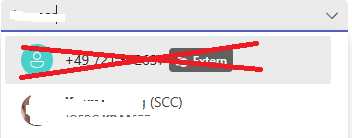
→ Search results are displayed
Note: Unfortunately, an invalid number is displayed first here. This number has nothing to do with the person you are actually looking for and should be ignored! - You will find the correct contact at the bottom of the search results → Click → "Call" button
In a chat
- Open the menu by tapping the video icon in the top right corner → Select " Audio Call "

Use the search field in the header
-
Search for the contact's name
- Display the contact's business card in the search results (visible on mouseover)

→ Clickthe "Business Card"icon - In the business card pop-up window, click the small phone icon

About Outlook
- Open email
-
When a new email arrives, search for the desired contact in the "To" field
- For a received email, use the email address displayed there
-
- Hover the mouse over the email address, wait...

- Selectthe phone icon → The call is connected
- Alternatively: wait a little longer until additional contact information appears

- Now either click on the phone icon or, in the lower section (wait a little longer), click on the number → call .
About the KIT directory ...
- Search for the person you're looking for using the directory (KIT - Intranet - About KIT - Organization - People Search)
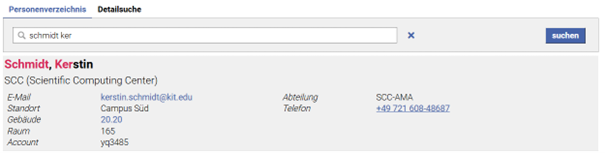
→ Click on the phone number 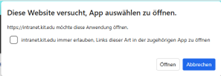
→ Open button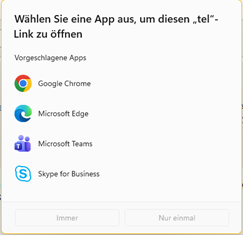
→ Select Microsoft Teams → Always specify → Call
Note: The last two windows (appearance depends on the browser) should appear only once when set to "Always."
Information on switching from Rainbow to Teams
Switching from Rainbow to Teams – where can I find what I need?
Login
Automatic when signing in to Teams; no further action required
Do I need an internet connection, as with Rainbow?
Yes
Which devices can be used?
Any device on which Teams runs – either as an app (desktop or mobile) or via a browser.
Are there any charges for making calls?
If you are on campus, your computer will use the KIT network to access the internet.
Your smartphone with the Teams app should then be connected to the KIT Wi-Fi.
If you are working from home, both your computer and your smartphone should be connected to your own Wi-Fi network.
In these cases, there are no charges, as the flat-rate data allowance from your internet contract is used.
If no Wi-Fi is available on your smartphone, these connections will use the mobile data on your SIM card.
Please ensure that your mobile data is routed via a KIT SIM card so that you do not incur any costs yourself.
Your smartphone with the Teams app should then be connected to the KIT Wi-Fi.
If you are working from home, both your computer and your smartphone should be connected to your own Wi-Fi network.
In these cases, there are no charges, as the flat-rate data allowance from your internet contract is used.
If no Wi-Fi is available on your smartphone, these connections will use the mobile data on your SIM card.
Please ensure that your mobile data is routed via a KIT SIM card so that you do not incur any costs yourself.
Contacts
Saved contacts with telephone numbers can be found under ‘People’ or ‘Contacts’
Call history
... can be found under ‘Calls’
Call forwarding
You can set this up via the three-dot menu in the header – Settings – Calls – Call handling and forwarding
Call back – Transfer – Conference
The relevant buttons appear in the header of the call window:

‘Do not disturb’
To do this, change your status in the icon in the top right-hand corner.
Telephone or Teams calls will then not be put through to you.
Telephone or Teams calls will then not be put through to you.
Deputy
Click on the three dots next to the icon in the top right-hand corner to go to Settings – Calls.
There you’ll find the settings for call forwarding (see also “Selected features in Teams telephony” – “Set up a substitute”)
There you’ll find the settings for call forwarding (see also “Selected features in Teams telephony” – “Set up a substitute”)
Teams call routing
This corresponds to the call group (see also “Selected features in Teams telephony” – “Define a call group”)