Android
If you encounter any problems, please also read our Wi-Fi FAQ and follow the checklist for reporting Wi-Fi issues
Authentication at KIT and eduroam
Below, we’ll walk you through the authentication process at KIT. The authentication process for eduroam is similar.
-
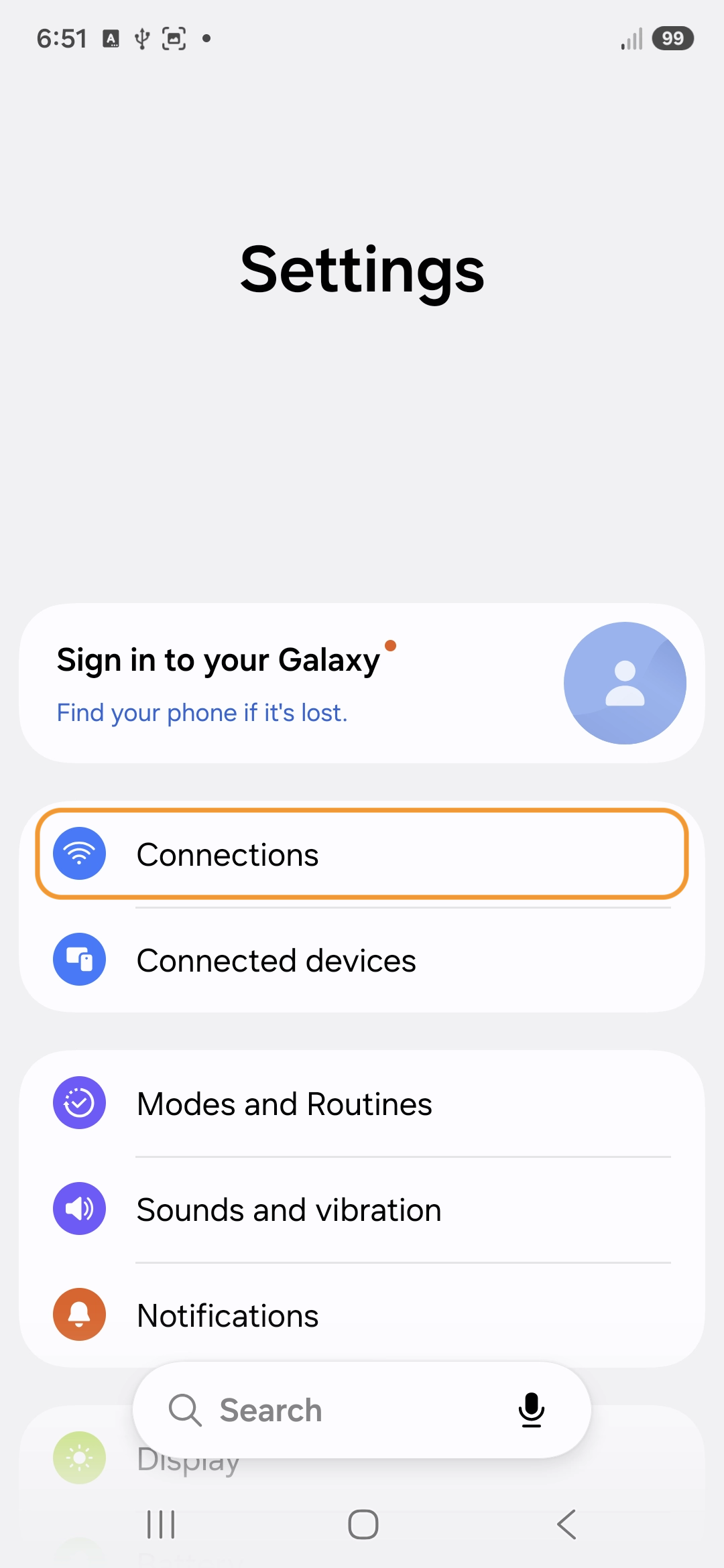
Open the Settings app and select the Connections menu item.
-
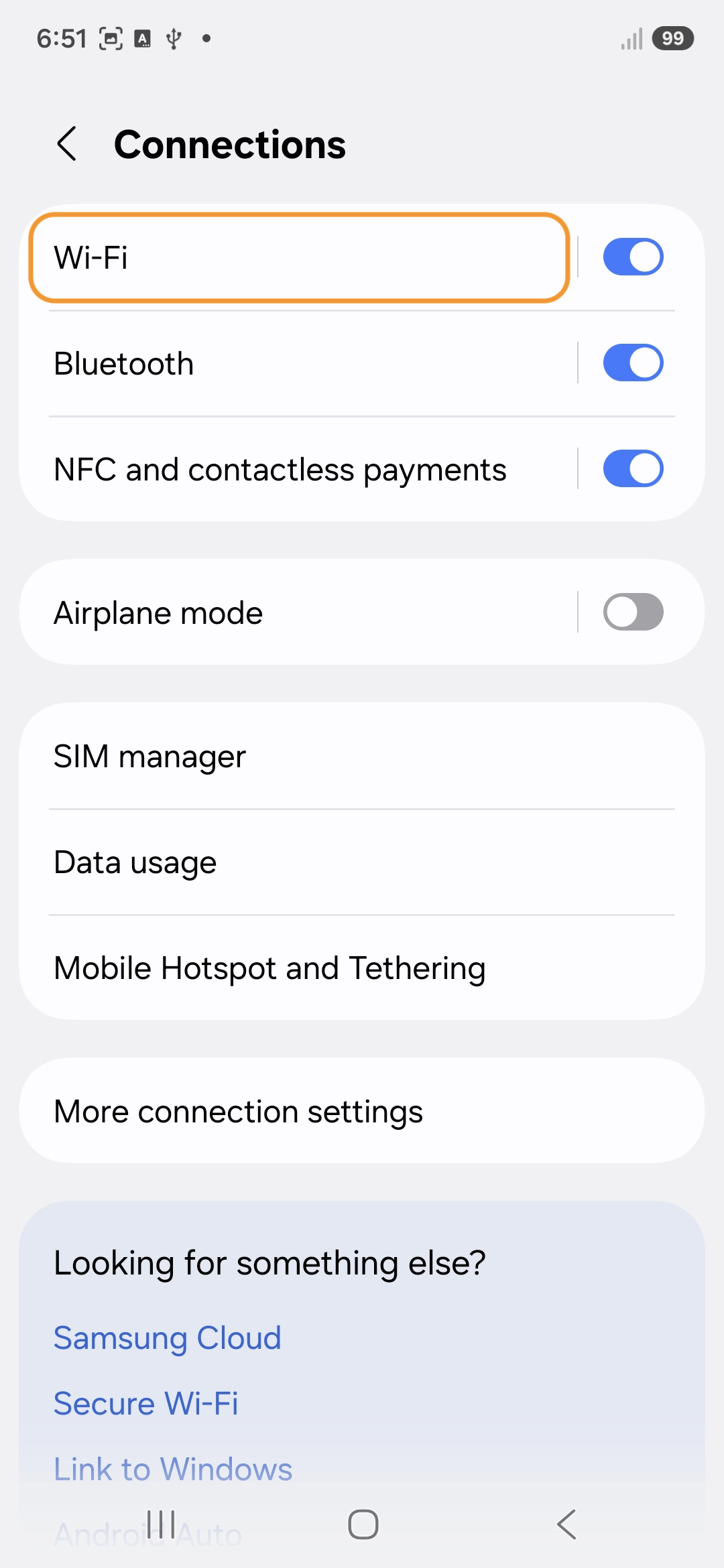
Select the Wi-Fi menu item.
-
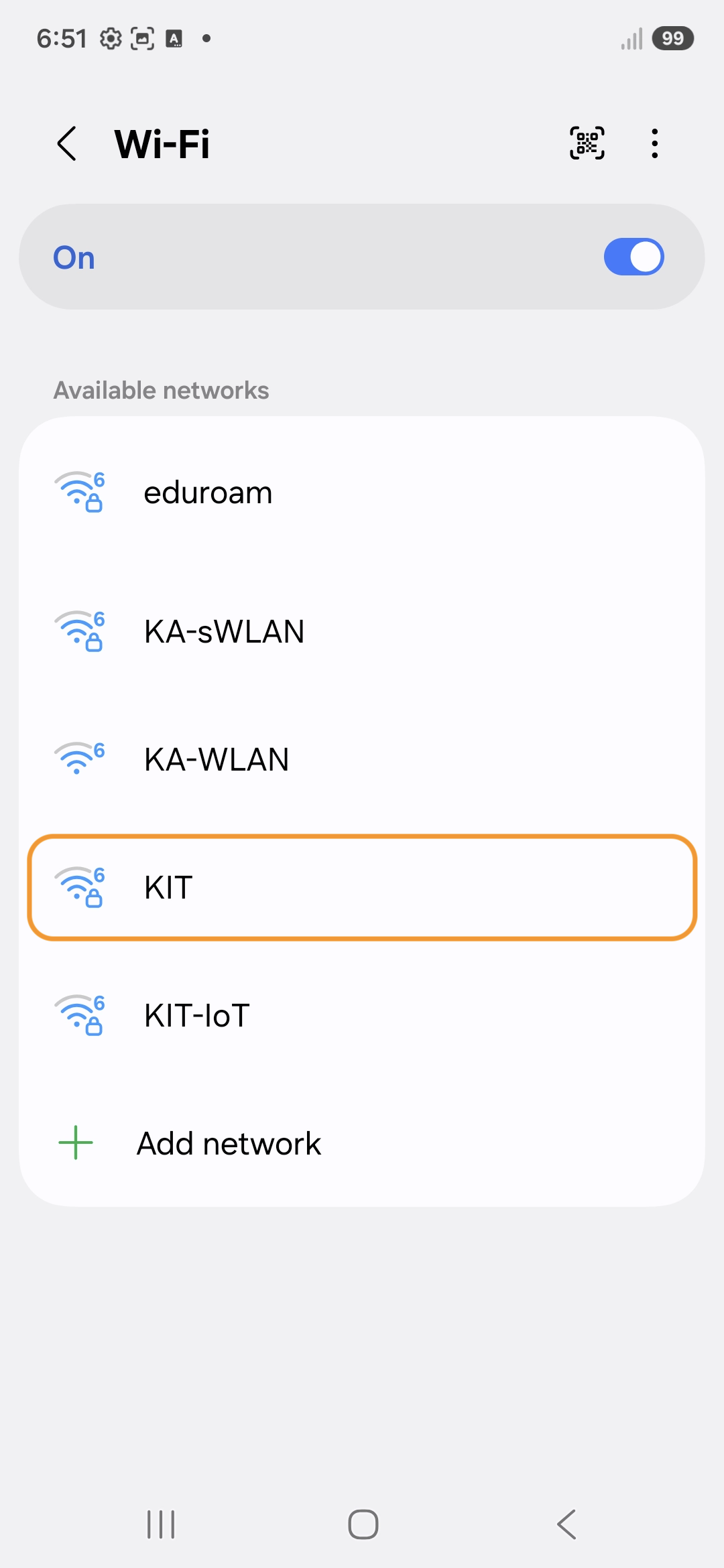
Select the network you want to connect to.
-
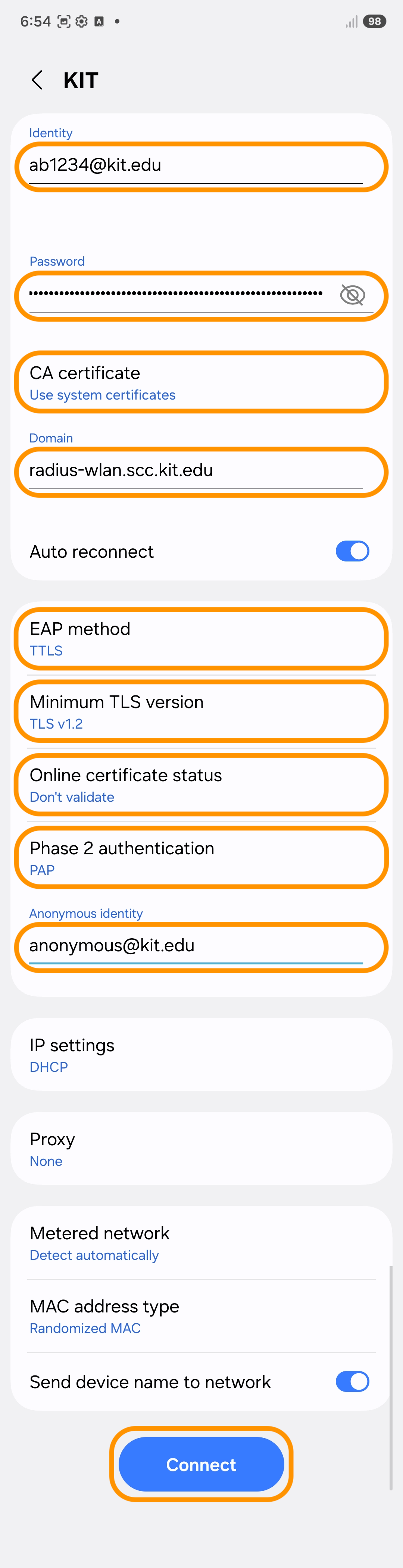
Configure the following settings for the network. Tap Connect to confirm.
- Identity: Your KIT-account@kit.edu (e.g., ab1234@kit.edu or uxxxx@kit.edu) — if you use auto-complete, a space will be added, which won’t work!
- Password: Your password
- CA Certificate: Use system certificates
- Domain: radius-wlan.scc.kit.edu
- EAP Method: TTLS
- Minimum TLS Version: TLS v1.2
- Online certificate status: Do not validate
- Phase 2 Authentication: PAP
- Anonymous identity: anonymous@kit.edu
-
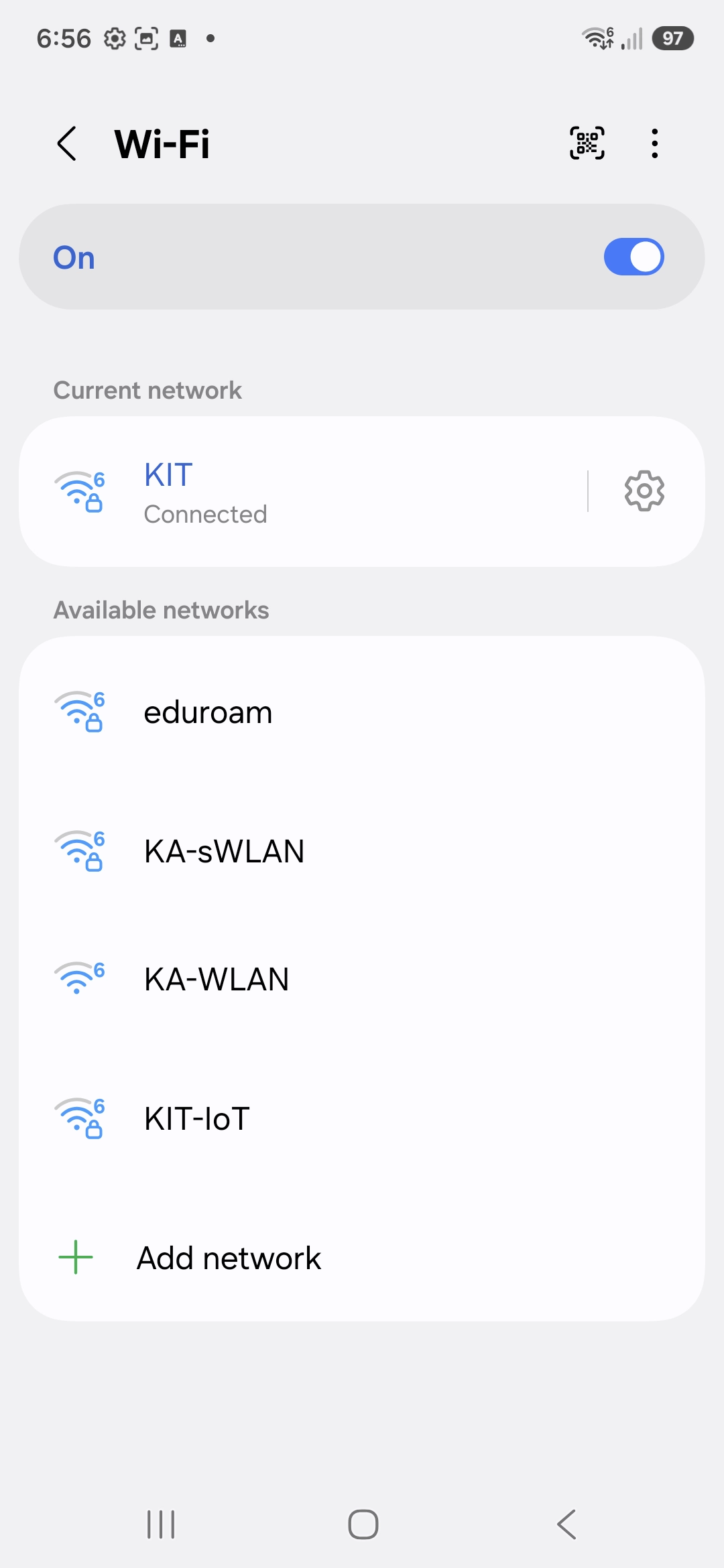
Your device should now be connected to the configured network.