-
KI-Toolbox
- The KI-Toolbox offers KIT employees and students convenient, web-based access to artificial intelligence (AI) through various large language models (LLMs). Local models are available that ensure maximum data sovereignty and are operated exclusively at the SCC. In addition, external models from the cloud (Azure, Google) are available for generic tasks without enabling the identification of individuals and without using input data for model training. To access the KI-Toolbox, you must successfully complete the AI training course on KOALA or ILIAS.
- Contact:ki-toolbox@scc.kit.edu
Access Requirements
Access is available to KIT employees, KIT students, and individuals with guest or partner accounts. Use of the KI-Toolbox is permitted exclusively for work-related or academic purposes!
Access to the KI-Toolbox requires successful completion of the self-paced course “Understanding and Applying Generative AI” on KOALA (for employees) or the ILIAS learning platform (for students). After completing the training and logging back into the KI-Toolbox, access will be automatically activated.
As of July 1, 2026, all users have a monthly standard budget of $5 available for using external models. You can check your current budget usage and other usage information yourself in the MyLiteLLM application (at https://my.litellm.scc.kit.edu). For more information and to learn how you, as a KIT employee, can set an individual budget if needed, see the “Budget” section below.
Please be sure to review the Terms of Use and Privacy Policy of the KI-Toolbox before using the service.
Quick Start
- Please first complete the self-paced course “Understanding and Applying Generative AI” on KOALA (for employees) or on the ILIAS learning platform (for students). Successful completion of the course is a mandatory requirement for admission to the KI-Toolbox.
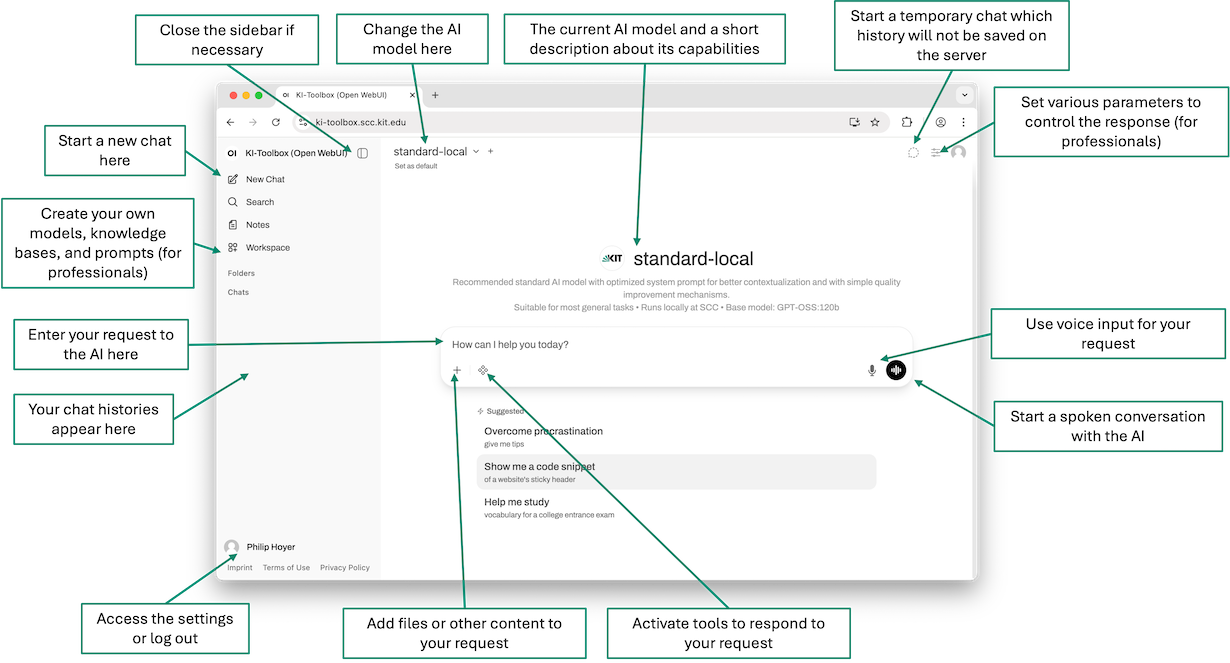
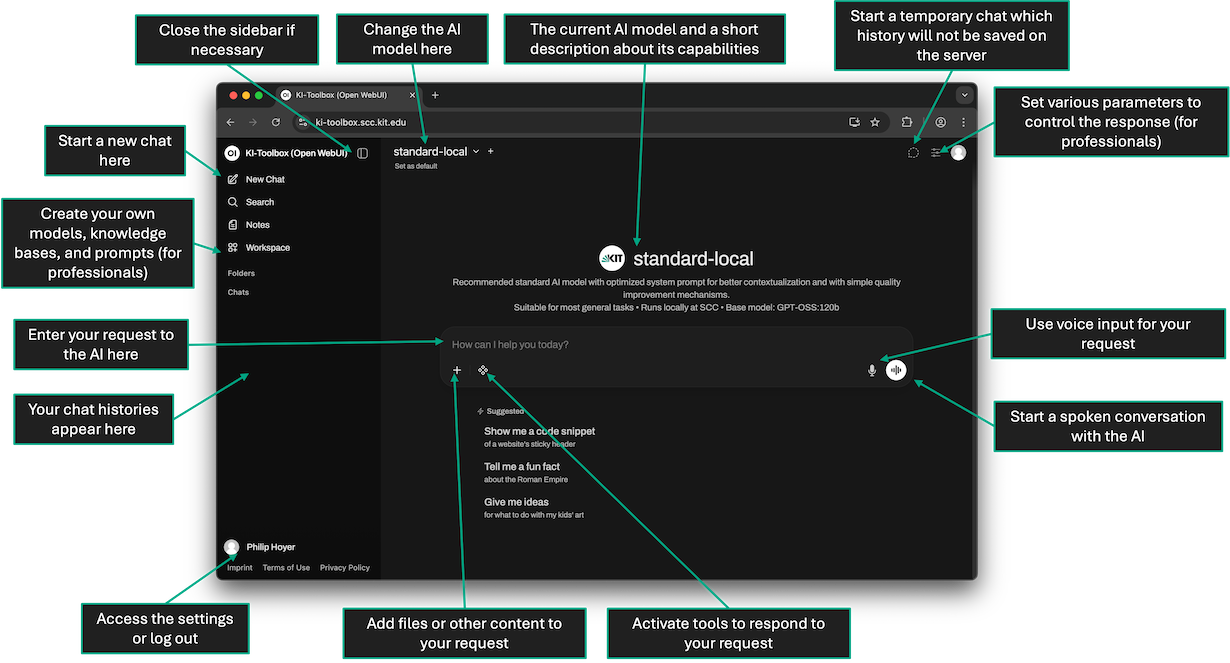
- Go to https://ki-toolbox.scc.kit.edu in your browser, click “Continue with KIT Account,” and log in.
- If necessary, accept the privacy policy and terms of use (only upon first login).
- If necessary, create a new chat thread by clicking “New Chat” in the left sidebar.
- If necessary, change the desired AI model by opening the model selection dropdown at the top of the page.
- Enter your request in the middle section of the page (“How can I help you today?”) and press Enter to submit it.
AI Models
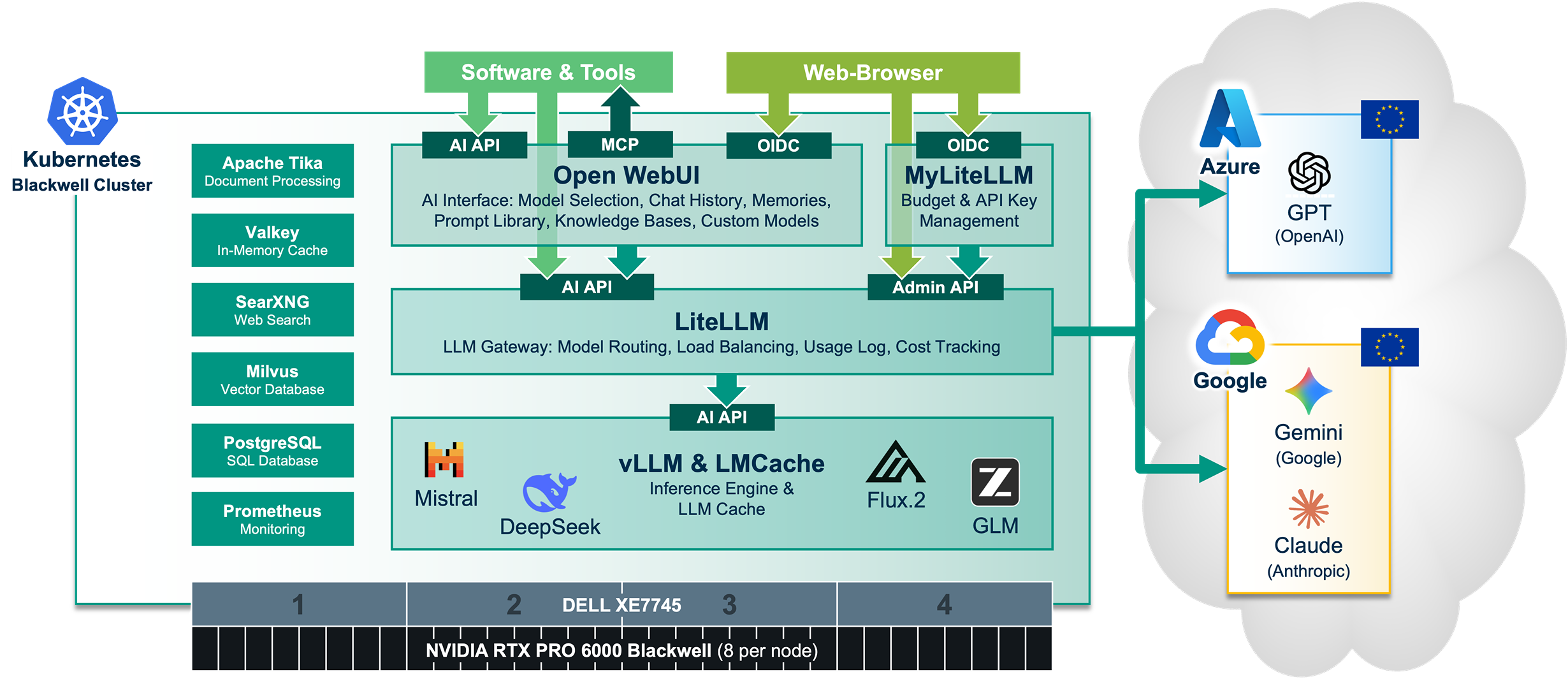
Currently, various AI models are available for selection in the KI-Toolbox. The local models are hosted directly at the SCC, and data processing takes place exclusively at KIT. External models (GPT, Gemini, Claude) are sourced from the cloud via European data centers. The Azure Cloud (Microsoft) is used for OpenAI models, while we use the Google Cloud Platform for models from Google and Anthropic.
Important Changes
“Native” function calls are now the default. The previous behavior is now referred to as “Legacy”. Please set your custom models that use the AI Toolbox as a backend via API to “Legacy” under Advanced Parameters → Function Call so that everything works as usual.
Standard Models
For users with little experience working with AI models, we provide two models with optimized system prompts:
- We recommend trying the Standard-Local model first. This model uses the local "Mistral Small 4" model and can therefore also be used to process personal data.
- For more complex tasks that do not involve personal data, the Standard-External model can be used; this model utilizes the OpenAI "GPT-5.6 Luna" model from the Azure Cloud.
List of Available Models
| Model / Model ID | Host | Origin | Cost in 1M tokens1 | Intelligence (AAII)2 | Speed | Notes |
|---|---|---|---|---|---|---|
| Mistral Small 4 kit.mistral-small-4-119b-a8b |
KIT | Mistral AI (FR) |
- | low 11.3 (reasoning) |
high | |
| DeepSeek V4 Flash kit.deepseek-v4-flash |
KIT | DeepSeek AI (CN) |
- | high 34.4 (max) |
very high | |
| GLM-5.3 Flash 🆕 kit.glm-5.3-flash |
KIT | Z.ai (CN) |
- | high 41.8 |
low | |
azure.gpt-5 |
Azure (EU) |
OpenAI (US) |
medium $1.38 in, $11 out |
medium 23 (high) |
medium | |
azure.gpt-5-mini |
Azure (EU) |
OpenAI (US) |
low $0.28 in, $2.20 out |
low 16.8 (high) |
high | |
azure.gpt-5-nano |
Azure (EU) |
OpenAI (US) |
very low $0.06 in, $0.44 out |
low 13 (high) |
very high | |
azure.gpt-5.1 |
Azure (EU) |
OpenAI (US) |
medium $1.38 in, $11 out |
medium 24.7 (high) |
medium | |
azure.gpt-5.4 |
Azure (EU) |
OpenAI (US) |
high $2.75 in, $16.50 out |
high 39 (xhigh) |
medium | (2) |
azure.gpt-5.5 |
Azure (EU) |
OpenAI (US) |
very high ⚠ $5.50 in, $33 out |
high 38.4 (xhigh) |
medium | (2) |
| GPT-5.6 Luna azure.gpt-5.6-luna |
Azure (EU) |
OpenAI (US) |
medium $0.22 in, $1.32 out |
high 37.3 (max) |
high | (1)(2) |
| GPT-5.6 Terra azure.gpt-5.6-terra |
Azure (EU) |
OpenAI (US) |
high $2.20 in, $13.20 out |
high 42.1 (max) |
medium | (1)(2) |
| GPT-5.6 Sol azure.gpt-5.6-sol |
Azure (EU) |
OpenAI (US) |
very high ⚠ $5.50 in, $33 out |
very high 47 (max) |
low | (1)(2) |
| GPT-6 Luna 🆕 azure.gpt-6-luna |
Azure (EU) |
OpenAI (US) |
low $0.12 in, $0.60 out |
high 38.1 (max) |
high | (1)(2) |
| GPT-6.1 Sol 🆕 azure.gpt-6.1-sol |
Azure (EU) |
OpenAI (US) |
high $2.40 in, $12 out |
very high 51.8 (max) |
low | (1)(2) |
google.gemini-3.1-flash-lite |
Google (EU) |
Google (US) |
low $0.275 in, $1.65 out |
low 15.6 |
high | |
| Gemini 3.5 Flash Lite google.gemini-3.5-flash-lite |
Google (EU) |
Google (US) |
low $0.33 in, $2.75 out |
low 22.2 |
high | |
google.gemini-3.5-flash |
Google (EU) |
Google (US) |
medium $1.65 in, $9.90 out |
medium 33.6 (medium) |
medium | |
| Gemini 3.8 Flash google.gemini-3.8-flash |
Google (EU) |
Google (US) |
medium $1.65 in, $8.25 out |
high 40.9 (high) |
medium | (3) |
| Claude Haiku 4.5 google.claude-haiku-4.5 |
Google (EU) |
Anthropic (US) |
medium $1.10 in, $5.50 out |
low 16.9 (reasoning) |
high | (1) |
| Claude Sonnet 5 google.claude-sonnet-5 |
Google (EU) |
Anthropic (US) |
high $2.20 in, $11 out |
high 38.2 (max) |
high | (1) |
| Claude Sonnet 5.5 🆕 google.claude-sonnet-5.5 |
Google (EU) |
Anthropic (US) |
high $2.20 in, $11 out |
very high 56 (max) |
high | (1) |
google.claude-opus-4.8 |
Google (EU) |
Anthropic (US) |
very high ⚠ $5.50 in, $27.50 out |
high 41.8 (max) |
medium | (1) |
| Claude Opus 5 google.claude-opus-5 |
Google (EU) |
Anthropic (US) |
very high ⚠ $5.50 in, $27.50 out |
very high 50.8 (max) |
medium | (1) |
| Claude Opus 5.5 🆕 google.claude-opus-5.5 |
Google (EU) |
Anthropic (US) |
very high ⚠ $5.50 in, $27.50 out |
extremely high 57.6 (max) |
medium | (1) |
google.claude-fable-5 |
Google (EU) |
Anthropic (US) |
extremely high ⚠⚠ $11 in, $55 out |
high 49.6 (max) |
low | (1)(4) |
| Claude Fable 5.1 google.claude-fable-5.1 |
Google (EU) |
Anthropic (US) |
extremely high ⚠⚠ $11 in, $55 out |
very high 53.4 (max) |
low | (1)(4) |
1 Costs are listed in U.S. dollars per 1 million tokens and are converted to euros at the current daily exchange rate (currently $1 ≈ 0.88 €). The calculations are based on official pricing information from Azure and Google. When calculating the cost of a request, a distinction is made between input tokens (in = your input + context, e.g., system prompt, files, etc.) and output tokens (out = AI output). Tokens are words or parts of words; as a guideline, 100 tokens ≈ 75 words.
2 Intelligence indications are based on the Artifical Analysis Intelligence Index (AAII) for the models, which might not reflect specific use cases. Please also note, that the index is usually based on benchmarks with the highest available reasoning effort.
Crossed out model names in the table are discontinued or obsolete models and should no longer be used. These models may no longer be available after the next update, so please use a current model.
Notes:
(1) For cache writes, a 25% surcharge is applied to the price of input tokens for the inputs to be cached (see also the "Caching" section)
(2) For context lengths exceeding 272,000 tokens, higher prices apply: a multiplier of x2 for input tokens and x1.5 for output tokens (e.g., GPT 5.6 Sol: $11 in, $49.50 out)
(3) Reduced prices apply to Gemini 3.8 Flash until the end of 2026: $0.825 in, $4.125 out
(4) For Claude Fable 5 and 5.1, the Advanced AI Safety Addendum does apply.
Model Aliases
To simplify the use of models in the KI-Toolbox or in external tools, the following aliases are available and can be used in place of the model ID. If a model is modified, the model ID does not need to be updated for these aliases. Please note that the underlying base models (and thus also the costs and behavior of the models) may change. The aliases for the local models, for GPT, and for Claude follow this scheme:
| Schema | Local | GPT | Claude |
|---|---|---|---|
| simple: High-performance models for simple tasks, low costs, minimal resource consumption, and fast results | alias.simple-local (Mistral 4 Small) |
alias.simple-gpt (GPT-6 Luna) |
alias.simple-claude (Claude Haiku 4.5) |
| medium: A balanced model for standard tasks with moderate costs, resources, and speeds | alias.medium-local (DeepSeek V4 Flash) |
alias.medium-gpt (GPT-5.6 Terra) |
alias.medium-claude (Claude Sonnet 5.5) |
| complex: A high-performance model for complex tasks, at the expense of high costs and long execution times | alias.complex-local (GLM-5.3 Flash) |
alias.complex-gpt (GPT-6.1 Sol) |
alias.complex-claude (Claude Opus 5.5) |
Caching
Caching model inputs not only enables faster processing but can also lead to significant cost savings. Short messages (depending on the model, up to a size between 1,024 and 4,096 tokens) are generally never cached. The cache retention time varies between 5 minutes and one hour. For cache hits, only 10% of the cost for input tokens is typically charged (e.g., GPT 5.5: $0.55 instead of $5.50).
Up to GPT 5.5 and all Gemini models, caching is performed at no additional cost and is always enabled. Starting with GPT 5.6 and for all Claude models, cache writes incur an additional 25% surcharge on the input tokens (e.g., Claude Sonnet: $4.125 instead of $3.30). For requests to the Claude models, LiteLLM injects corresponding “Cache-Control” directives into the messages; as a result, the inputs are cached for 5 minutes and billed with the corresponding surcharge. For cache hits, the retention period starts over. This is currently not configurable.
Web Search
To ensure the model can access up-to-date information, web searches can be performed, and the results of these searches can be processed by the models. You can also explicitly instruct the model to perform a web search in the prompt. Please note that the web search must be enabled as a tool in the prompt (enabled by default). If the AI model wishes to perform a web search, it uses SearXNG, which is hosted at KIT. SearXNG forwards the search query to various search engines on the Internet and consolidates the results into a single output that can then be processed by the model. This process does not allow for any identification of the person who initiated the search.
Speech Recognition
To convert speech to text (Speech-to-Text, STT), the KI-Toolbox uses OpenAI’s “Whisper-Large-v3” model, which is hosted at KIT. For voice input, the KI-Toolbox offers the “Dictate” or “Voice Mode” functions, which can be found under “Prompt Input” on the right-hand side.
Speech Generation
To generate speech (Text-to-Speech, TTS), the local “Voxtral-4b” model from Mistral AI is used. The model runs exclusively at KIT. Speech generation is used in the KI-Toolbox when you have an AI model’s response read aloud via the speaker icon.
Note: Voxtral uses unconventional names for voices: {language}_{male/female}, for example: de_female (standard), de_male, fr_female. it_male, etc.
Image Generation
The local model “Flux.2 Dev” from Black Forest Labs is used for image generation. Flux 2 Dev runs entirely locally at KIT. Please note the license terms when reusing the generated images (specifically, for non-commercial use only). For image generation, you can use any local model and instruct the prompt to create an image. The selected model generates a detailed image description, which is passed on to the image generation model. Please note that image generation must be enabled in the chat for this to work (enabled by default for local models).
Budget
Using the external models (GPT, Gemini, Claude) incurs costs of varying amounts. The incurred costs are calculated per user and can be viewed via MyLiteLLM. You can find the costs per model in the model table above. Please note that a maximum budget of 5 USD per user per month is currently available for using external models. These costs are not currently passed on to users but are covered centrally. If the budget is exceeded, a corresponding error message will be displayed when using an external model (“ExceededBudget: End-User=xy1234 ∂does-not-exist.kit edus over budget. Spend=xx.xxxxxxx, Budget=5.0”). The budget is reset at midnight (UTC) at the beginning of each month.
If higher usage is required, KIT employees can set an individual budget in MyLiteLLM. The budget may only be adjusted with prior approval from the budget manager. Unauthorized changes to the budget without consultation with the institute or DE head are prohibited! When a budget change is made, an email is sent to the user and to the responsible head as additional confirmation. For individually adjusted budgets, the SCC will charge the user’s cost center the full amount of the actual costs incurred at the end of the month. To do this, we convert the dollar amount to euros at the current exchange rate (currently $1 ≈ 0.88 €).
The budget adjustment is permanent, meaning it affects not only the current month but also subsequent months. Currently, adjustments of up to $100 are possible. If you have a higher need, please contact us.
The use of local models does not count toward the budget and remains available even if the budget is exceeded.
API Key
You can also use the AI models via an API (OpenAI-compatible interface). You can generate your own API key in the KI-Toolbox by going to “Settings” (bottom left of the menu) -> “Accounts” -> “API Key” (click “Show” if necessary). Please treat your API key like a personal password and protect it from unauthorized access. If you suspect that your API key may have been compromised, regenerate it immediately via the KI-Toolbox.
For external tools, the base URL for the API is usually “https://ki-toolbox.scc.kit.edu/api”. You can find the model ID in the table above or by hovering your mouse pointer over the model selection in the KI-Toolbox to display the tooltip. An overview of the available API endpoints can be found at https://ki-toolbox.scc.kit.edu/docs.
For more information on using the API, see the ZML documentation.
Service Accounts
To use the AI Toolbox in chatbots or other third-party applications that require permanent API access, we recommend using a non-personal API key via a KIT service account. You can request a service account at the SCC ServiceDesk or through the ticket system. Please include “Use of the AI Toolbox API” or similar in the service description so that the account can be activated for the AI Toolbox. Existing service accounts can also be activated via the ServiceDesk or the ticket system. Once activated, you can use the service account to generate an API key through the AI Toolbox.
Groups
Groups allow you to share various artifacts (models, knowledge, notes, prompts, etc.) with multiple people to enable collaborative editing or use. You cannot create groups directly in the KI-Toolbox; however, group synchronization via the SCC Group Management system is possible upon login. Specifically, groups from the SCC Group Management system with names in the format "<OE>-ki-toolbox-<name>" are automatically created in the KI-Toolbox when a person who is a member of that group logs in, and that person’s group membership is updated (i.e., new groups are created, new group memberships are added, and group memberships that no longer exist are removed).
Hardware and Software
The KI-Toolbox software stack consists exclusively of open-source software and runs in a Kubernetes environment on 4 nodes (DELL XE7745) at the SCC. Each node is equipped with 8 NVIDIA RTX6000 PRO Blackwell GPU cards. Open WebUI is used as the front end, while LiteLLM is used for load balancing, cost management, and logging. The local AI models are run using vLLM and LMCache and are loaded from the local S3 at the SCC.