Windows manual configuration
If you encounter any problems, please also read our Wi-Fi FAQ and follow the checklist for reporting Wi-Fi issues.
These instructions describe how to manually connect to the KIT (or eduroam) network in Windows 11.
If there is no existing entry for the KIT Wi-Fi network or if the connection was unsuccessful, you’ll need to set up a new Wi-Fi network. In the latter case, you’ll need to delete the existing network (see instructions here) in order to successfully complete all further settings:
-
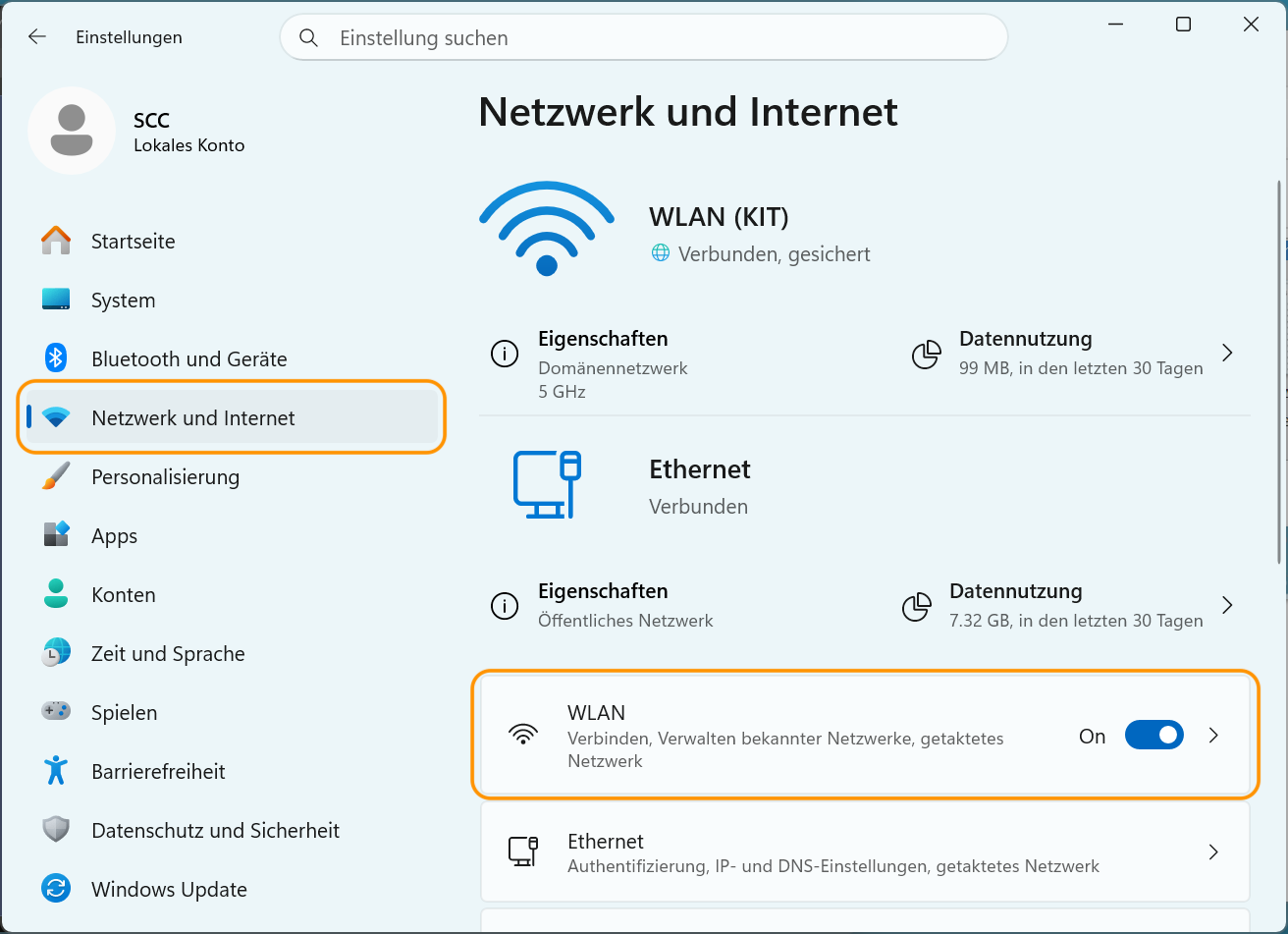
Open Windows Settings ( + I or via the Windows menu) and go to the Network & Internet section.
-
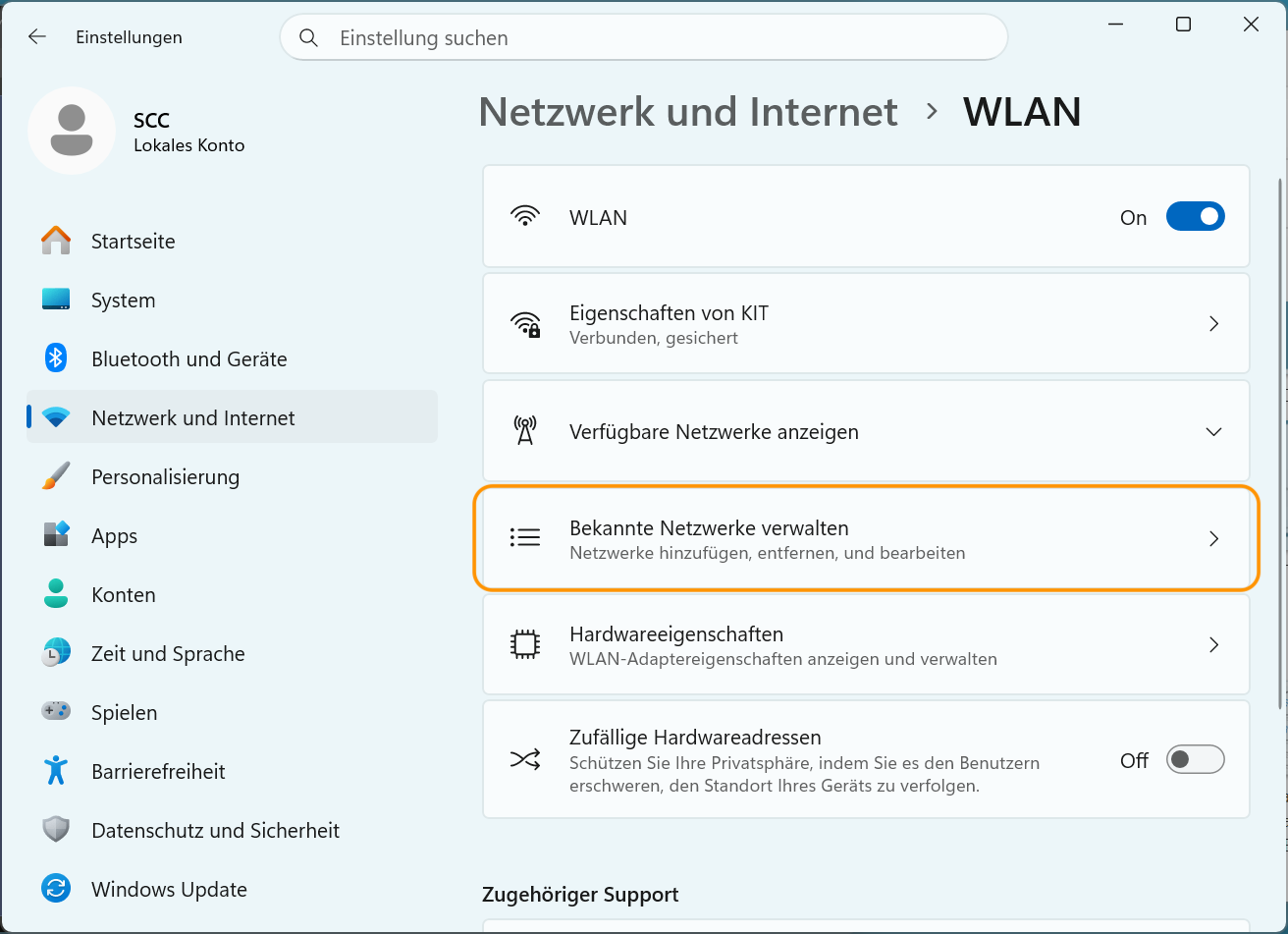
Click on Wi-Fi, then Administration of Known Networks.
-
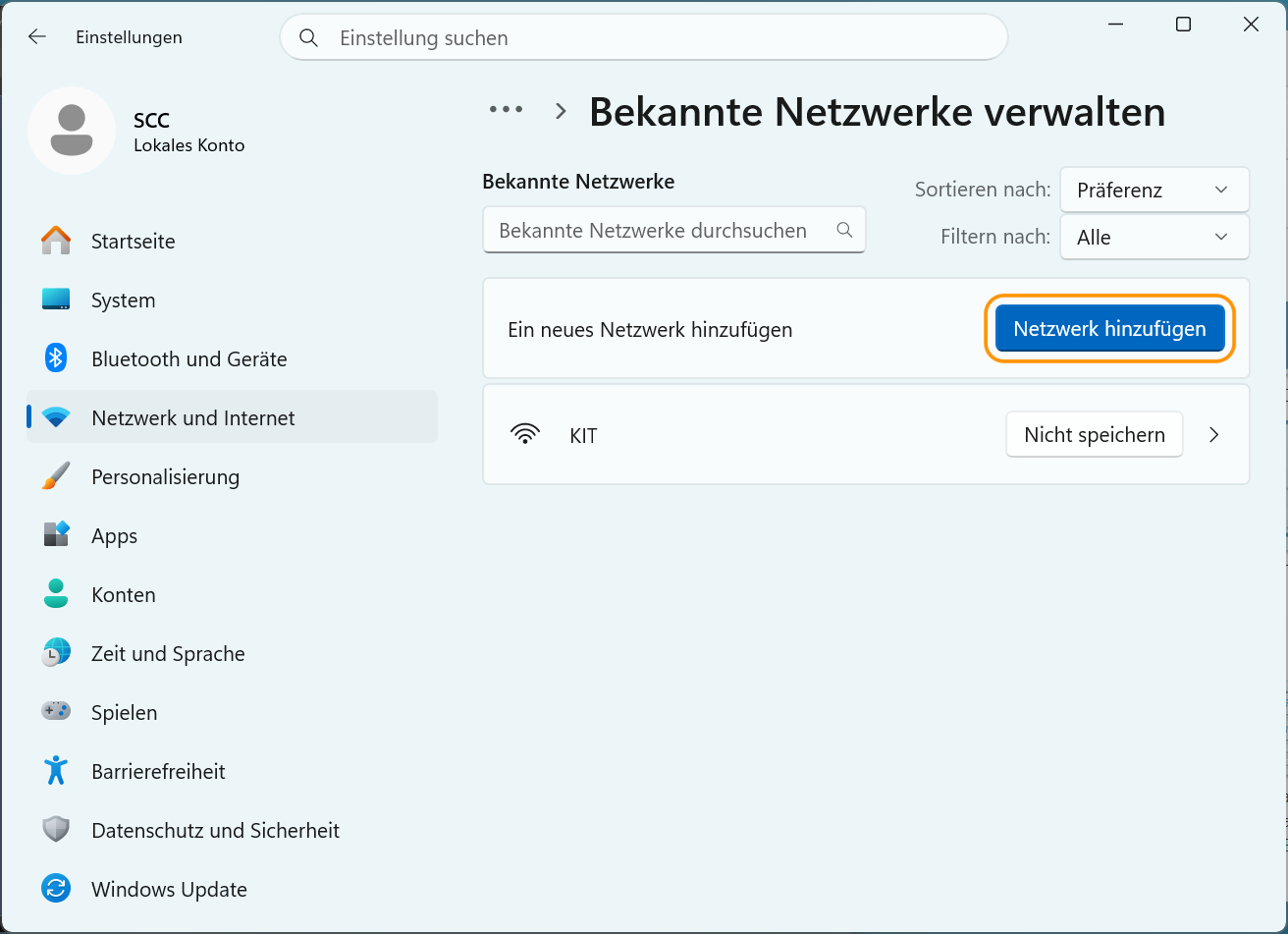
Click Add Network.
-
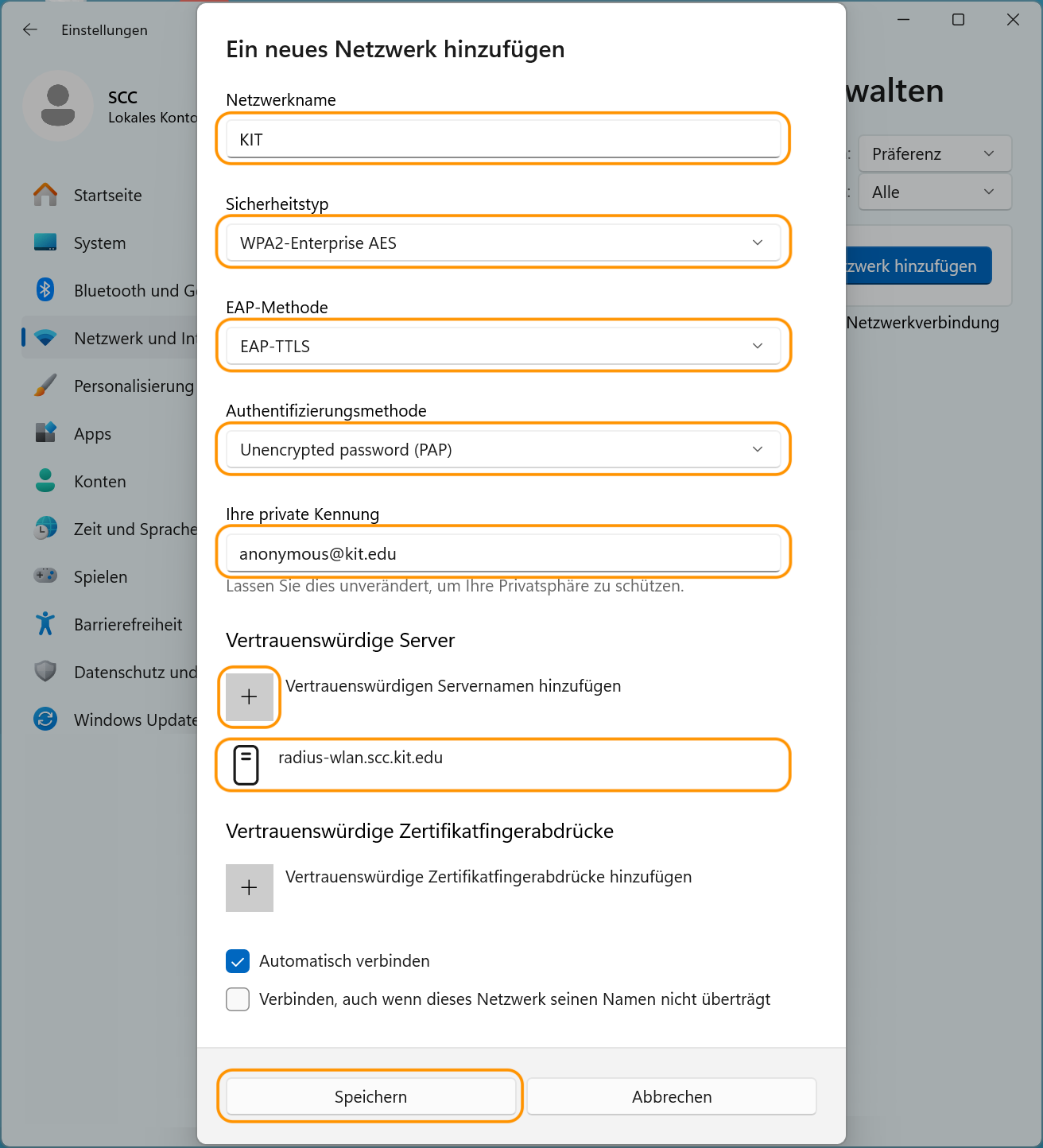
Adjust all the marked settings:
- Network name: KIT
- Security type: WPA2-Enterprise AES
- EAP method: EAP-TTLS
- Authentication method: PAP
- Private identifier: anonymous ∂does-not-exist.kit edu
- Trusted server: radius-wlan.scc.kit.edu
Close the dialog box by clicking Save.
-
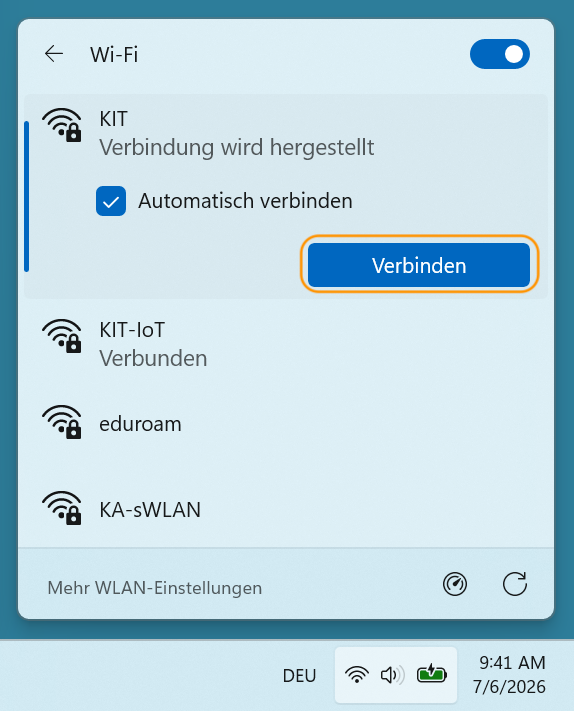
The connection now appears in the list of known networks on the taskbar:
-
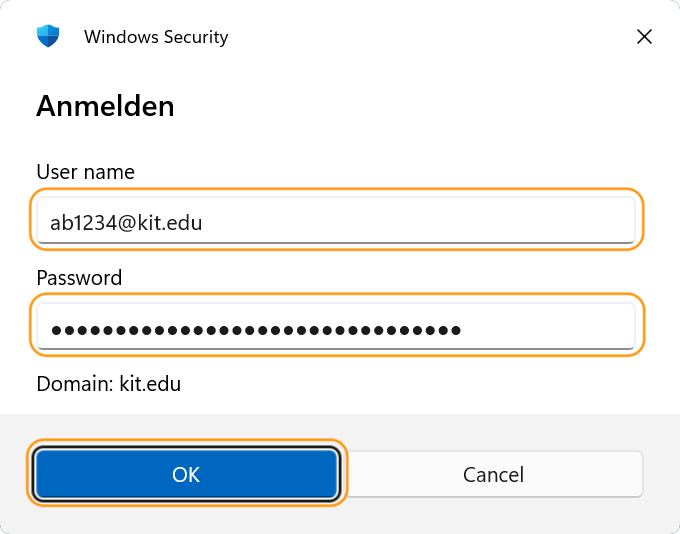
Now enter username@kit.edu and the password for your KIT account (e.g., ab1234 ∂does-not-exist.kit edu or uxxxx ∂does-not-exist.kit edu):
-
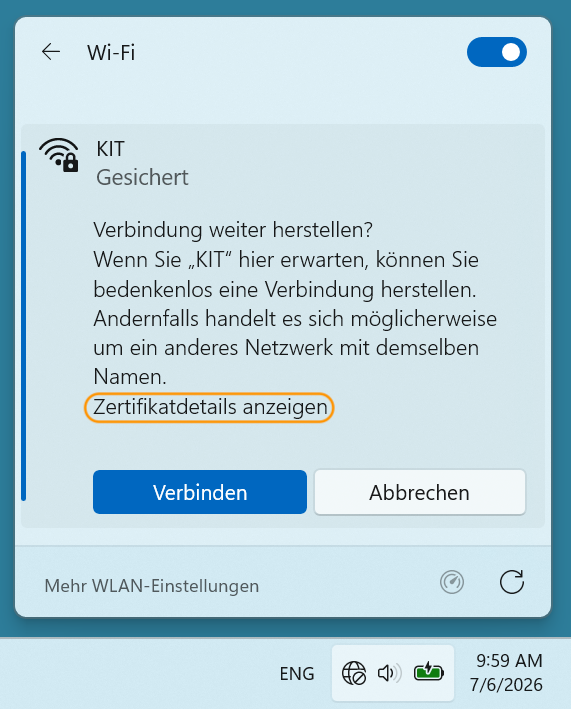
Verify the certificate as described in the other Windows guide. Once you've done that, the setup is complete: