General information on M365 guest accounts at KIT
External individuals who are invited by KIT staff via their email address or who are granted access to data in MS Teams are automatically assigned an M365 guest account.
Any account that has not been used to log in for the past 180 days will be deactivated without further notice.
Note: This M365 guest account should not be confused with the GuP account for guests and partners at KIT. The M365 guest account is intended solely to provide access to the M365 tenant for KIT employees, so that they can collaboratively access KIT-shared content in the Microsoft Cloud.
What should users with an M365 guest account keep in mind?
To access shared divisions at KIT, you must sign in to the M365 guest account. KIT requires multi-factor authentication (MFA) for these guest accounts. Below you will find instructions for setting up the required multi-factor authentication and for logging in with an M365 guest account. Depending on which Microsoft account the invited external users use to log in to the Microsoft Cloud, there are different step-by-step guides available.
How does an external user sign in to an M365 guest account?
If you're unsure whether the invited guest has a Microsoft account, the following checks can help:
| Registration for ... | Gastkonto ohne Microsoft-Konto | Gastkonto mit persönlichem Microsoft-Konto | Gastkonto mit Microsoft-Geschäftskonto einer anderen Organisation |
| myaccount.microsoft.com | Registration is NOT possible | Registration is NOT possible | Registration is available |
| account.microsoft.com | Registration is NOT possible | Option to request a code to log in | Registration is available |
| Continue to the instructions | "...without an MS account" | "... with a personal Microsoft account" | "...with an MS Business Account" |
Set up MFA once for an M365 guest account
Here you will find instructions for setting up multi-factor authentication at KIT for M365 guest accounts.
MFA with a Microsoft Business Account
As a member of another client's team, the external colleague is already signed in to Teams.
- After accepting the invitation to the new client, you can switch clients using the dot in the upper-right corner.
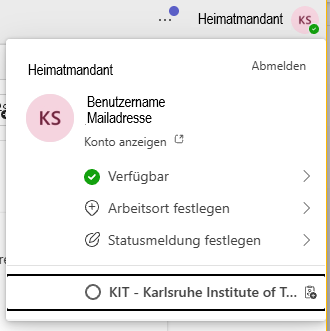
- After selecting KIT, the following appears:
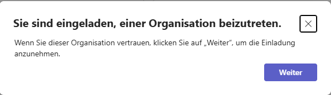
- When you log in for the first time, you must confirm your use of the provided data:
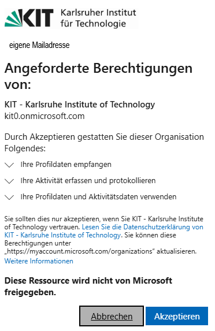
- Since KIT requires MFA (multi-factor authentication) for guests, this must now be set up.
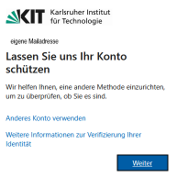
- Microsoft usually recommends the MS Authenticator.
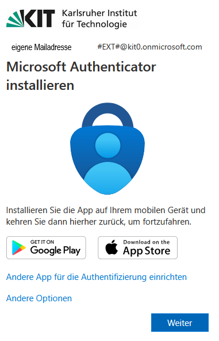
- The account must be set up in the app
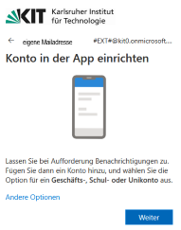
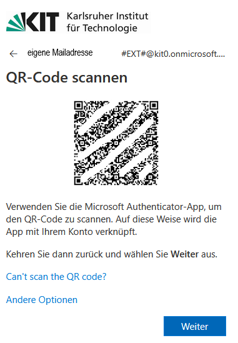
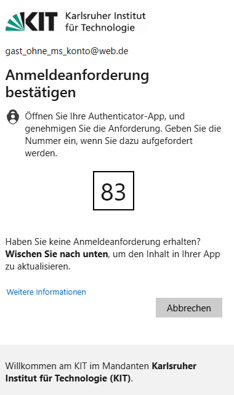
- The first login test with MFA:
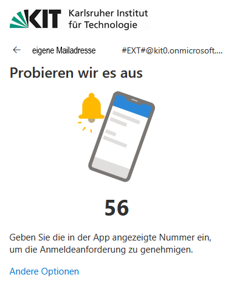
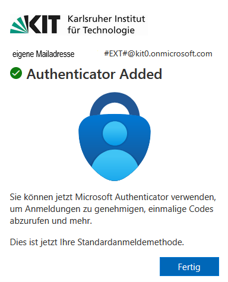
- You should now be able to see the team to which this account was invited.
MFA with a personal Microsoft account
The guest uses the link to the team provided in the invitation email.
- When you log in for the first time, you must confirm that you are using the provided data:
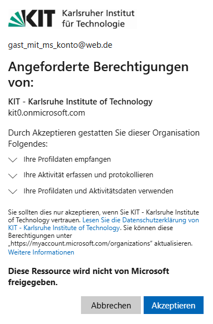
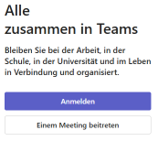
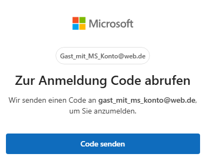
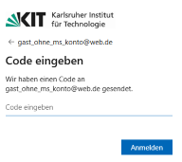
- The email containing the code will be sent to the guest's email address. This code must be entered in the next window.
- Then we'll continue:
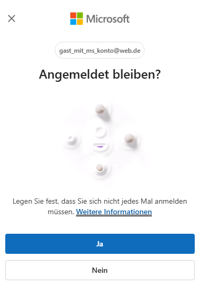
- Since KIT requires MFA (multi-factor authentication) for guests, this must now be set up.
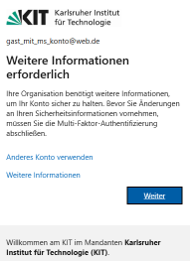
- Microsoft usually recommends the MS Authenticator.
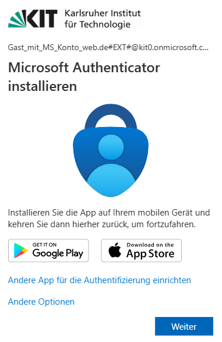
- The account must be set up in the app:
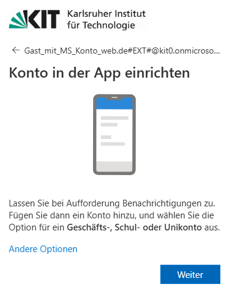
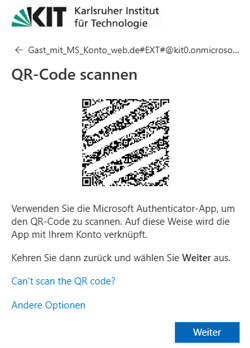
- After scanning and setting up MFA for this account on your smartphone: Continue
- The First Login Test with MFA
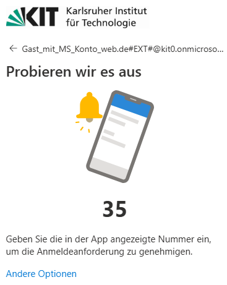
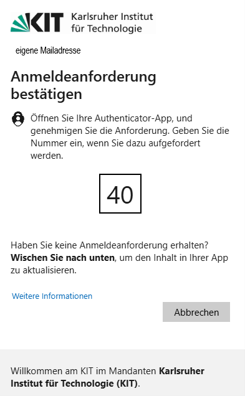
- The numbers must be entered correctly on the smartphone.
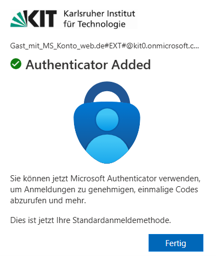
- This completes the institution of the MFA.
- Next, sign in to Teams again using MFA
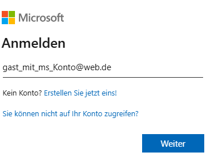
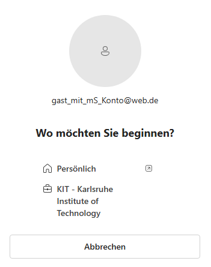 Click on "KIT – Karlsruhe Institute of Technology"
You should now be able to see the team to which this account was invited.
MFA without a Microsoft account
The guest uses the link to the team provided in the invitation email.
- The following window appears:
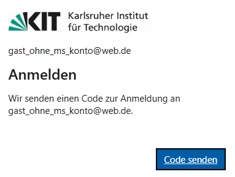
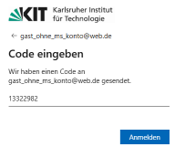
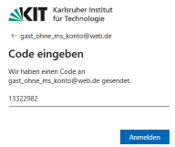
- An email containing the code will be sent to the email address
-
This is specified in the following window
-
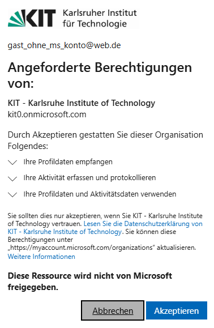
When you sign up for the first time, you must confirm your use of the provided data
-
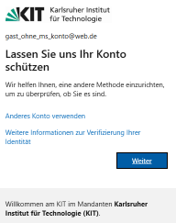
Since KIT requires MFA (multi-factor authentication) for guests, this must now be set up.
-
Microsoft usually recommends the MS Authenticator.
-
The account must be set up in the app:
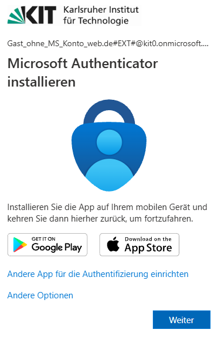
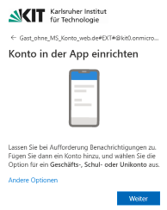
-
The First Login Test with MFA
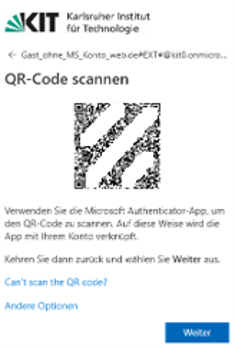
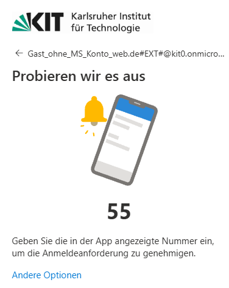
You should now be able to see the team to which this account was invited.
Signing in after setting up MFA
Here you will find instructions for logging in using the multi-factor authentication set up at KIT for guest accounts.
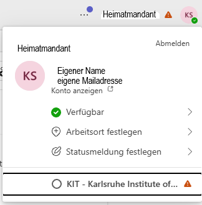
Sign in with your personal Microsoft account
After entering the account information in the login window,
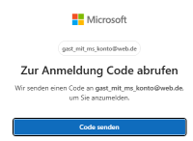
After clicking "Send Code," an email will be sent to the specified email address.
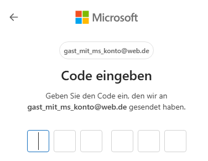
Enter the code you received here
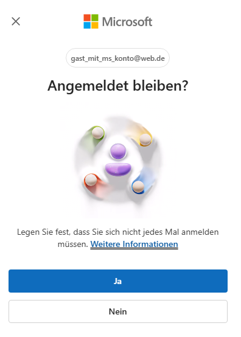
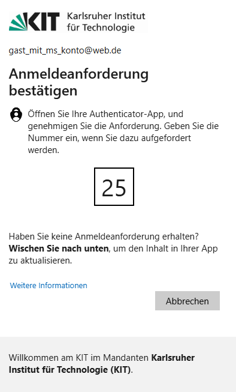
Just confirm the sign-in using the Authenticator app and...
The registration was completed successfully.